
 Re-mark
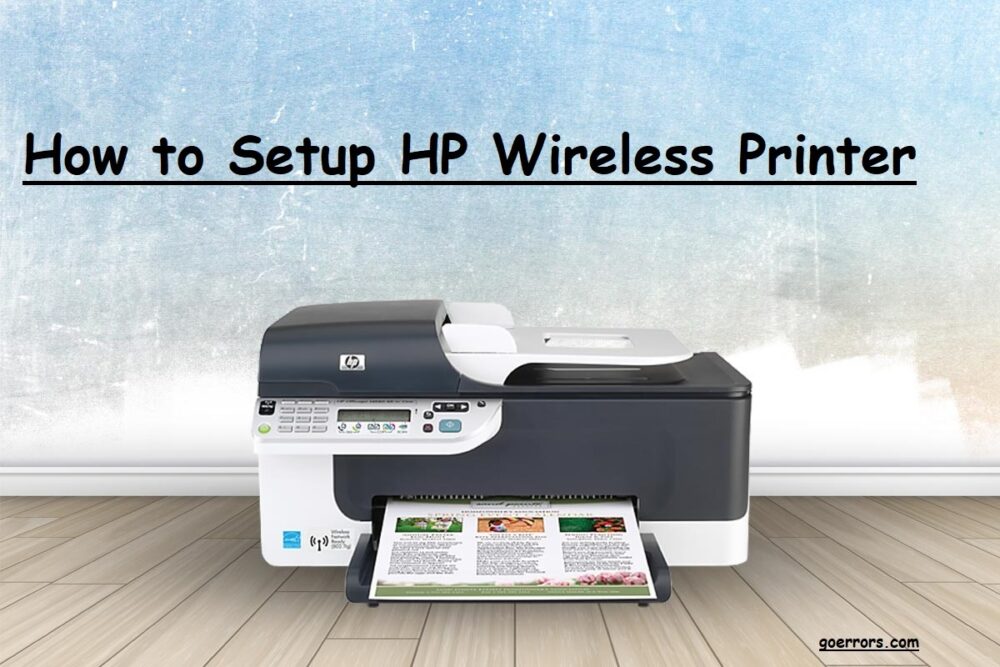
Instructions for Connecting a Printer to a PC As we move into the age of cutting-edge technology, it's never been easier to connect your computer to a printer. However, the sheer variety of wire colors, widths, and configurations might be confusing. Plugging in and out isn't enough to get the job done, even when you believe you've got the knack of linking points A and B. Wired and wireless printing are both available in today's digital world. Using this guide, you will learn how to connect a printer to a computer, laptop, or mobile device. Let's get this party started right now. The first step is to make sure you've taken the printer out of the box with all of its parts intact for a quick and efficient assembly. Rushing through the simplest phase is easy to do because of enthusiasm and hurry, and even more easy to miss the most basic of processes. Connect the power cable's two prongs to an accessible outlet once you've assembled all the components and are ready to configure the system. You may have to push a power button for your printer to turn on, or it may come on automatically. Now that's where we can help. Wi-Fi printers may be connected using this method. With a wireless printer, the procedure of connecting it may appear more difficult, but you'll be astonished at how easy it really is. In the beginning, find your settings. Once the printer has been turned on and is ready for configuration, you must connect it to your home's WiFi network. Most current printers include an LCD panel that displays the WiFi networks that are accessible to connect to. The Wireless LAN Settings page may be found by clicking about on this screen. Make sure your WiFi network is connected. As soon as you've entered your LAN settings, you'll need to discover your home network service set identifier (SSID). SSID may be found by hovering your cursor over the WiFi symbol on your taskbar. As well as being found on the bottom or side of your ISP's router, the SSID can also be found Complete connection is the final step. Now that you've chosen your SSID, you're ready to input your network password. Printing can begin immediately once you input your printer's password. Find your printer's settings To open the Windows Start Menu, click the Windows symbol in the bottom left of your desktop screen. Find the gear icon and click on the "Devices" icon to open your settings window. Next, attach the printer to your computer. "Add a Printer or Scanner" may be found in your "Devices" section. The name of your printer, together with its manufacturer and model number, should display as accessible when you click this. The remainder of the wireless setting is handled by your computer once you click "Add Device." Print as many copies as you like!
You may like

Launch your business confidently with the complete guide on how to start a general trading company in Dubai, UAE, in…
Trading Company in UAE, Trading Company in Dubai, Start a Trading Company in UAE, Start a Trading Company in Dubai, Trading Company